Free Classroom Tool

Seating Chart Maker

Arrange your class with the rules that actually matter — keep two students apart, keep a pair together, put someone at the front — in real room shapes, then print a copy for the desk and one for the cover teacher.

No sign-upStudent names never leave your browserHow it works
Classroom Seating Chart

Paste a column straight from a register or spreadsheet — numbering and extra columns are stripped.

Seating rules

Room layout

Your list, rules and today's chart are saved in this browser.

No chart yet

Paste your class list, add any rules about who sits where, and make the chart.

From the same team

The room is sorted. Now the lesson.

AI Quiz Maker writes the starter, the review round or the exit ticket from your own notes, a PDF or a topic — so the lesson is ready before the class has sat down.

  • Turn a lesson into a quiz in about a minute
  • Share it as a link, or export to Kahoot, Quizizz and Blooket
  • Save it and run the same lesson again next year
Make a quiz free

Free plan, no card needed

Charts that survive contact with a class

  • Add the keep-apart rules before you shuffle, not after. Fixing a chart by hand is how the pairs you separated end up back together.
  • Lock the seats you placed deliberately. Reshuffling then moves everyone else around them.
  • Print the substitute copy too. It shows names only, so your notes about students stay off the desk.

How to use it

A finished chart in four steps

No account, no student logins, and nothing about your class stored anywhere but this browser.

  1. 1

    Paste the class list

    One name per line, or paste a column straight out of your register — numbering and extra columns are stripped for you.

    15 seconds

  2. 2

    Add the rules

    Pick two students and choose apart or together. Mark anyone who needs a seat near the front. These are the reason a chart exists.

    30 seconds

  3. 3

    Choose the room

    Rows, rows with aisles, paired desks, pods of four or six, a horseshoe or a double horseshoe — real shapes, not one grid relabelled.

    5 seconds

  4. 4

    Print both copies

    One for your desk with your notes on it, and a substitute copy that shows names only. Or a rotation that moves everyone on for the next few weeks.

    10 seconds

What you get

What this generator does

  • Keeps students apart, properly

    Say who must not sit together and the arrangement is solved around it, in whatever shape the room is. A shuffle that can seat the two you are separating side by side is worse than no shuffle, because to a class it looks deliberate.

  • Tells you what it could not do

    If the rules cannot all hold — three students who must all be apart in a pod of four — it says which one it had to break, by name, instead of quietly producing a chart that does not do what you asked.

  • Real room shapes

    Pods, paired desks, aisles and horseshoes are actual geometry, so who counts as sitting next to whom is different in each. Our previous five layouts were all the same rectangular grid with different labels.

  • Undo, and locked seats

    Reshuffle and change your mind, and take it back. Lock the desks you placed on purpose and everyone else moves around them.

  • A substitute copy

    Two PDFs from one chart: yours with private notes at the foot of the page, and a names-only version for whoever covers the lesson. Notes about a student never reach the second one.

  • A whole term of rotations

    Generate several arrangements at once where everyone changes neighbours each time, and print them as one file — the job teachers otherwise do by hand every few weeks.

  • Your view or theirs

    Flip the chart to match where you are standing. A chart drawn from the students' point of view is backwards while you are at the board reading names off it.

  • Several classes, no account

    Save up to twelve classes, each with its own list, rules and layout, in this browser. No subscription and no sign-in.

What is a classroom seating chart generator?

A classroom seating chart generator arranges a class list into a plan of the room, so you can decide where each student sits before the lesson rather than during it. A good one does more than shuffle: it honours the rules you set — who must not sit together, who should be near the front — and gives you something printable to keep on the desk.

This one runs in your browser with no account and no student logins. The class list, the rules and any notes you add are stored in this browser and are never sent anywhere, which is also why it never asks for photographs or dates of birth. You can save several classes, print a copy for yourself and a different one for a cover teacher, and generate a term's worth of arrangements at once.

See a finished seating chart

This is a real chart from the tool above, using its sample names: 20 students at 24 desks in pods of four, with two rules (Liam apart from Noah, Mia next to Sophia) and Ethan needing a seat at the front. The orange dot marks him. Below are the two PDFs it printed: your copy, with the front-row marker, and the substitute copy with names and desks only.
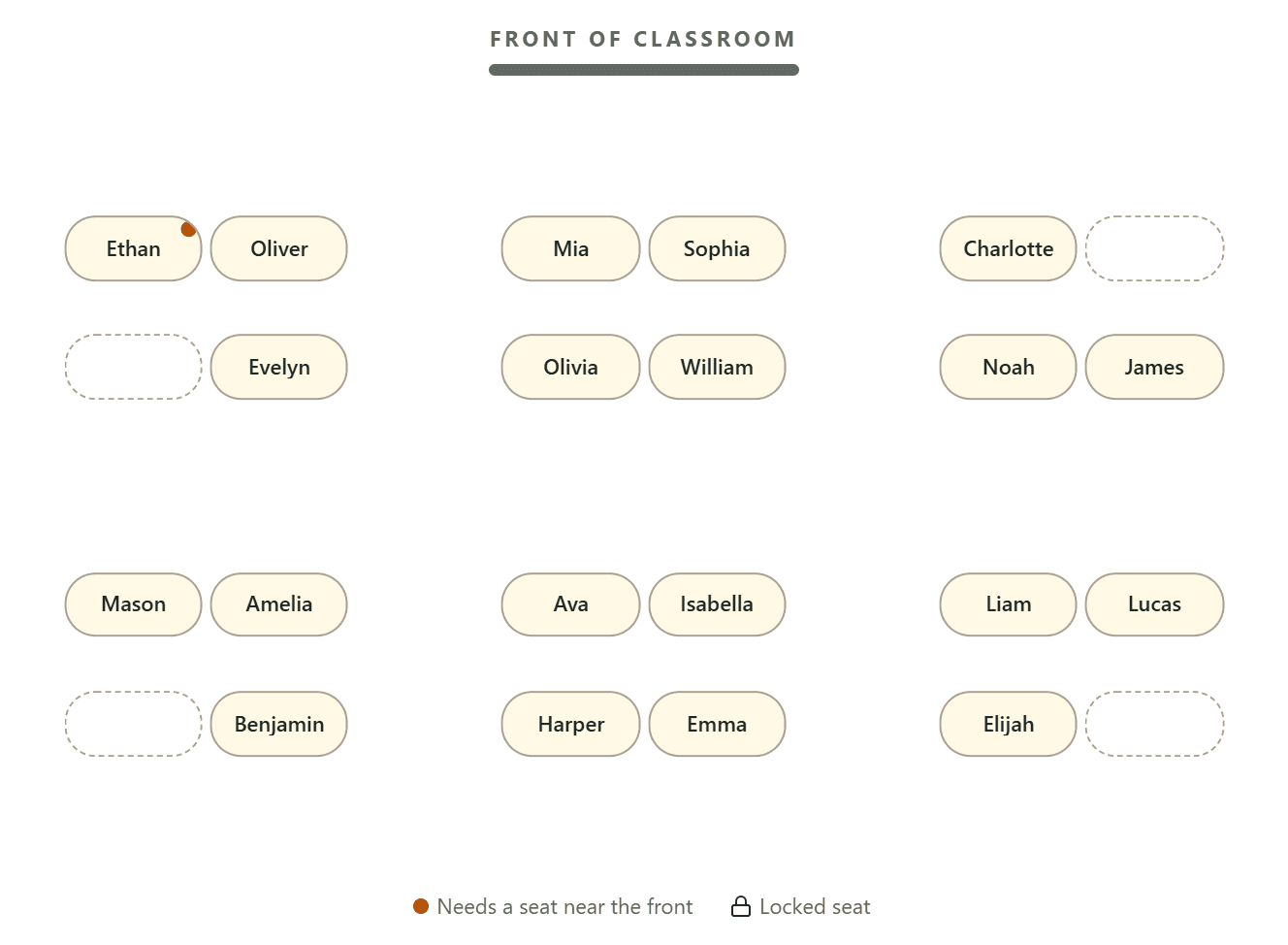
Seating chart in pods of four for 20 students, front of classroom at the top, with one student marked as needing a front seat and four empty desks

The rules are the whole point

Nobody opens a seating chart tool because they want a random arrangement. They open it because two students cannot sit together, or because someone needs to be near the front, or because the back corner has become a problem. A generator that only shuffles has automated the easy half of the job and left the half that matters.

So the rules come first here. Pick two students and say apart or together; mark anyone who needs a front seat. The arrangement is then solved around those rules rather than produced and checked afterwards, and it works in any of the room shapes, because what counts as "next to" is worked out from the actual distance between desks — in a pod of four everyone is a neighbour, in rows with aisles the student across the gangway is not.

The more useful half of that promise is what happens when the rules cannot all hold. Ask for three students who must all be apart in a four-desk pod and something has to give. Rather than silently returning a chart that breaks a rule you set, it names the one it could not satisfy and leaves the rest intact — so you can widen the layout, drop a rule, or move someone by hand knowing exactly what you are fixing.

A classroom is not a grid

The previous version of this page offered a list of layout presets that were all the same rectangular grid with different names. Choosing "Groups" gave you a grid; choosing "Lab" gave you a grid. It looked like a feature and behaved like a label.

The shapes here are real geometry: rows, rows broken by aisles, paired desks pushed together with a gap before the next pair, pods of four and six, a horseshoe, and a double horseshoe with an inner ring. That matters beyond appearances, because the shape determines who is sitting next to whom, and therefore whether your keep-apart rules mean anything. Paired desks with a proper gap between pairs produce completely different neighbours from a row of evenly spaced desks, even when both hold twenty-four students.

There is also a view switch, which sounds cosmetic and is not. A chart drawn from the students' point of view is mirrored while you are standing at the board reading it, which is exactly when you need it. One button flips the room so the plan matches what is in front of you, and the printed copy follows whichever way you set it.

The copy you leave for someone else

Ask teachers what a seating chart is actually for and a surprising number say: the cover lesson. Someone who has never met the class needs to know who is who, and a plan on the desk does more for a difficult hour than any amount of written guidance. It is also the reason printing matters more than exporting an image, and the previous version of this page could only produce a PNG.

There are two PDFs here from the same chart. Yours has the front-row markers and any private notes you have written, set small at the foot of the page. The substitute copy has names and desks and nothing else — no notes, no flags. A note you write to remind yourself that a student needs checking on is not something to hand to a stranger, and separating the two copies is the only honest way to let you keep notes at all.

That is also why there are no student photographs. Holding photos of children responsibly takes an account system and a data-processing agreement. For a tool with no login, holding children's faces would be a responsibility we should not take on and you should not want us to. Names on desks do the job.

Nothing about your class leaves this browser

Three questions come up again and again about classroom software: what happens to student data, whether the product is FERPA and COPPA compliant, and whether it works on a school-issued Chromebook. A tool with accounts and a server has to answer them with a records policy.

This one has no account to create and no server to send anything to. Your class lists, rules and notes are written to this browser's own storage and stay on the device you are using. Clearing your browser data deletes them; opening the page on another computer gives you an empty tool. That is a real limitation — there is no sync — and it is the direct consequence of the thing that makes the privacy answer simple.

For the rest of the lesson, the classroom timer and the classroom scoreboard cover the other two things usually on the board, and the worksheet generator makes the task itself.

Seating chart questions

What teachers ask before they trust a chart to a cover lesson.

Yes. No sign-up, no trial, no watermark and no limit on how many charts or classes you make. We make quiz-generation software; this is a tool we give away.

Yes, and it is the main thing this does. Pick two names and choose apart or together, mark anyone who needs a front seat, and the arrangement is solved around those rules. If a rule cannot be met it tells you which one, by name, rather than producing a chart that quietly breaks it.

Rows, rows with aisles, paired desks, pods of four, pods of six, a horseshoe and a double horseshoe. They are real shapes rather than one grid with different labels, which matters because the shape decides who counts as sitting next to whom.

Yes, as a landscape PDF. There are two versions: your copy, with front-row markers and your private notes at the foot of the page, and a substitute copy showing names and desks only.

Yes. Notes are visible to you on screen and printed only on your own copy — never on the substitute copy, and never sent anywhere. They live in this browser with the rest of your class list.

No, deliberately. Holding photos of children responsibly takes an account system and a data-processing agreement. A tool with no login should not be holding children's faces, and names on desks do the job.

Yes, up to twelve, each with its own list, rules and layout. They are saved in this browser rather than an account, so there is nothing to sign into and nothing to sync.

Yes. It is a web page with no installation, no extension and no login, so it works on a managed Chromebook the same as anywhere else. Full screen puts just the chart on the display if you want to show it.

Nothing leaves your browser. There is no account, and the class list, rules and notes are written to this browser's own storage on the device you are using. We never receive them. The trade-off is that there is no sync between devices.

Yes. The rotation makes several arrangements at once where students change neighbours each time, and prints them as a single file. Your keep-apart and front-row rules still hold in every one.

Press undo. Swaps and reshuffles can be taken back one at a time, up to the last twenty. You can also lock the desks you placed deliberately, so reshuffling moves everyone else around them.

No. That would need you to sign in and grant access to your class data, which is the thing this tool avoids. Copying a column of names out of your register or a spreadsheet and pasting it in takes a few seconds — numbering and extra columns are stripped automatically.

Yes. Copy share link puts the chart in a link: the class name, the layout and who sits at which desk. Your notes, keep-apart and keep-together rules and front-row marks are left out, the same as on the substitute copy. The chart travels in the part of the link after the # sign, which browsers never send to a server, so it reaches the person you send it to and not us. Anyone with the link can see the names, so send it only to people who should.

Still have questions?

Our team is here to help. Email us at support@aiquizmaker.co

The room is arranged. Now the lesson.

Paste your notes, upload a PDF or name a topic, and AI Quiz Maker writes the starter, the review round or the exit ticket — then exports it to Kahoot, Quizizz, Blooket or a printable sheet.

  • No credit card
  • 20 free quiz generations
  • Exports to 19 formats